
Important: Change in receiving business email
Important: Change in receiving business email

Written by:
Leo Hoogma, 26 January 2060


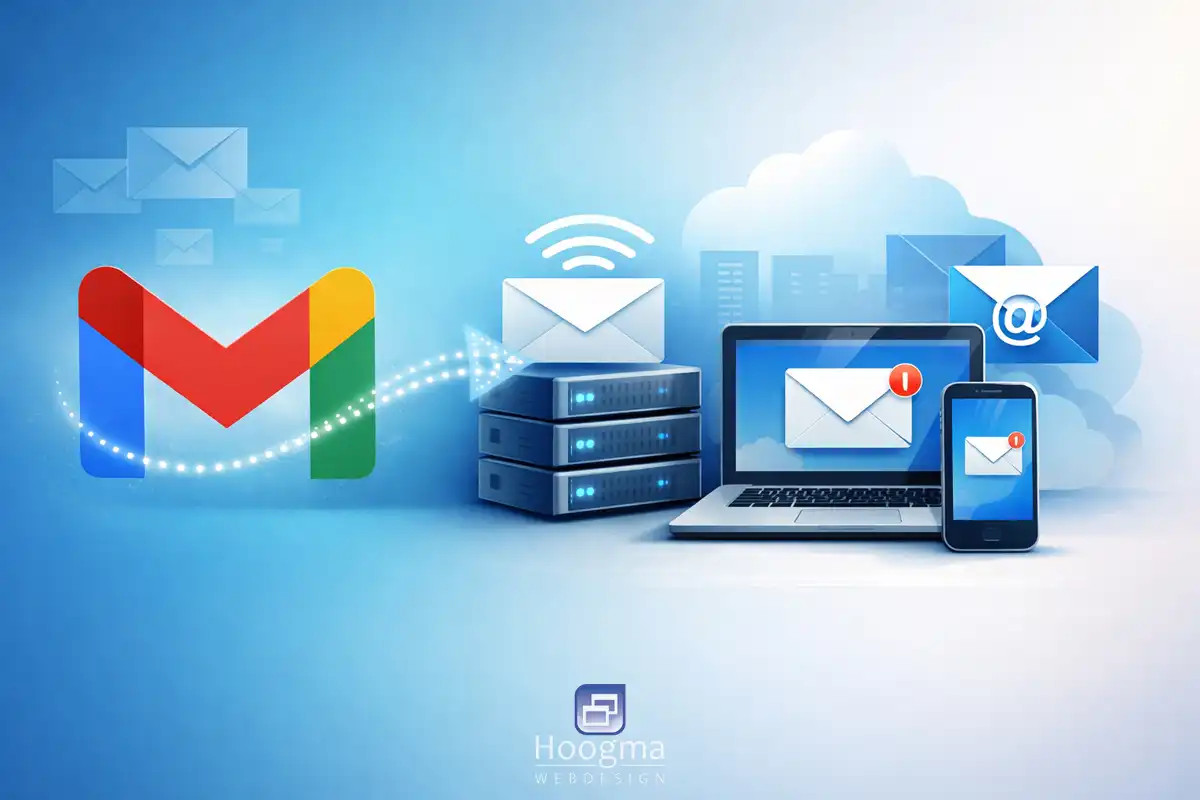
Google (Gmail) will soon stop automatically fetching business email addresses, such as info@ addresses. Many of our customers currently use this feature. If no changes are made, emails may no longer arrive in Gmail. The emails themselves are not lost. To continue receiving emails, it is necessary to log in to your mailbox in another way.
Our recommended solution
The most stable and future-proof solution is to set up your email address in an email client on your computer, tablet, or phone. For example, you can use Mozilla Thunderbird (download link), a good alternative to Gmail, Apple Mail, or Outlook. It works on Windows, Mac, and Linux and is considered secure and user-friendly.
This method uses IMAP, which means it synchronizes with your mailbox on the server. This is supported by all major email providers.
If you prefer not to install an email client, you can always access your email via our webmail interface at www.hwmail.nl.
In both cases, you will need your login details as we have shared with you by email:
- Your business email address (e.g., info@... .nl)
- Your email password
- The mail server name (in most cases this is d-hoogma3)
Setting up email via Mozilla Thunderbird (step-by-step)
You can set up your email yourself using the following steps. Follow them one by one; with the screenshots, this usually works without assistance.
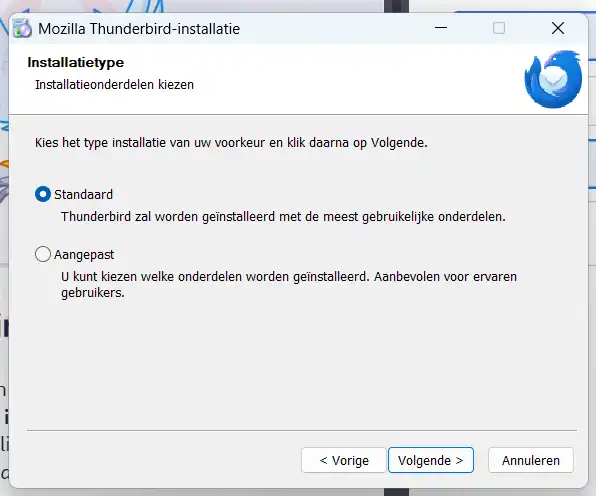
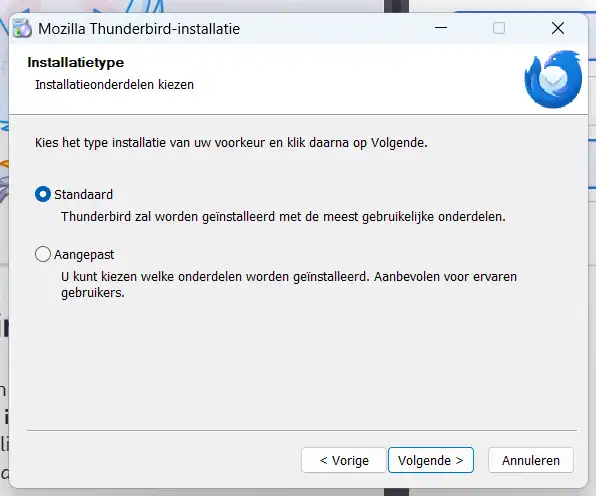
- Download Mozilla Thunderbird on your PC, laptop, tablet, or mobile device.
- Click `Next` and `Finish` to complete the installation. In most cases, the program opens automatically after a successful installation.
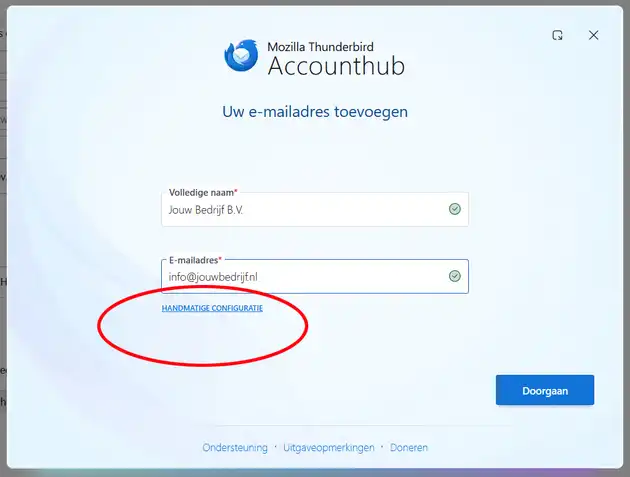
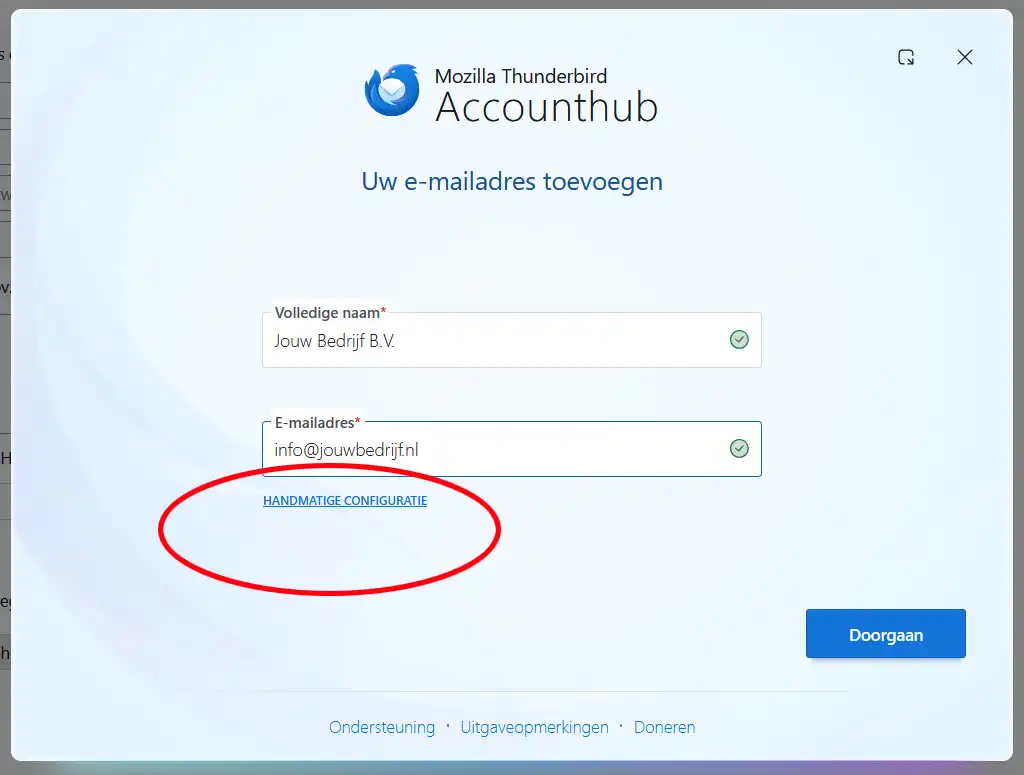
- Enter your company name and email address, then click `Manual configuration`.
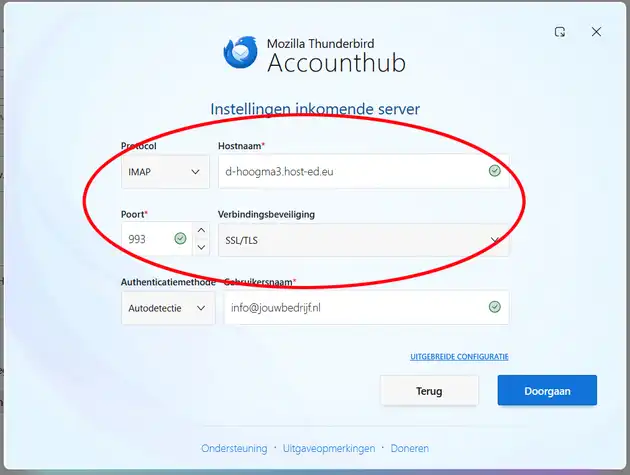
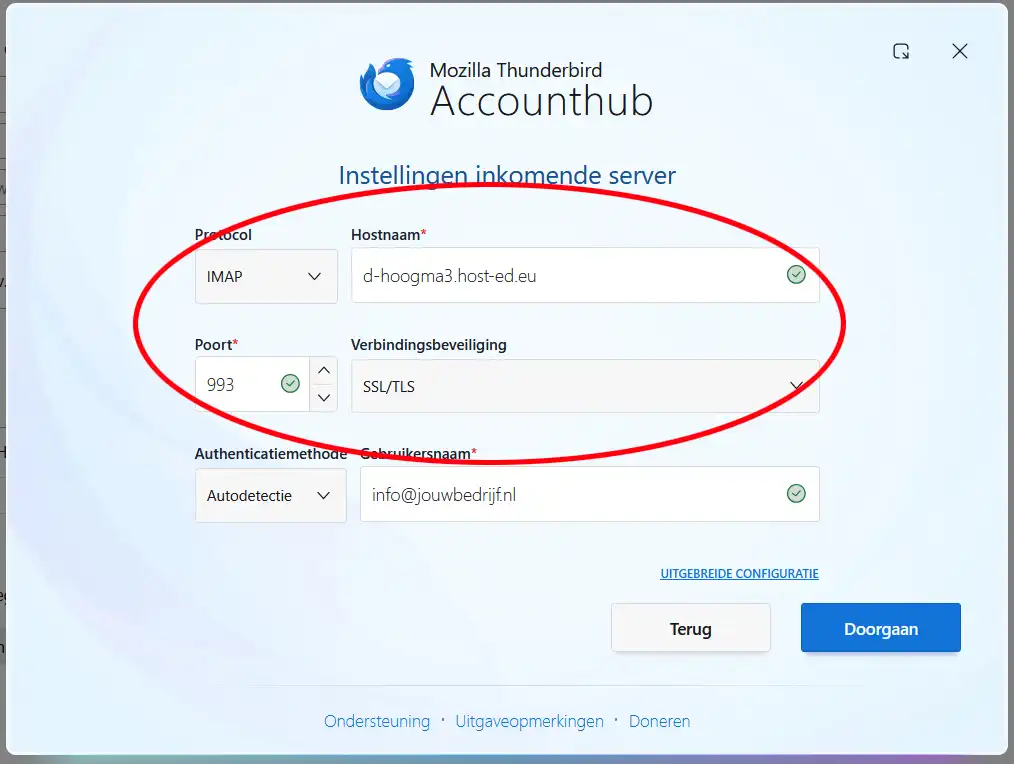
- For the Incoming server settings, select the IMAP protocol. Copy and paste the following hostname: d-hoogma3.host-ed.eu
- Select port 993 and set the connection security to SSL/TLS.
- The authentication method and username are already set correctly. Click `Continue`.
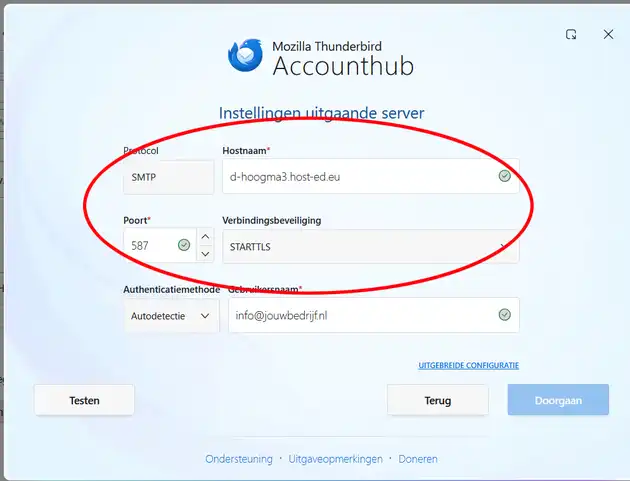
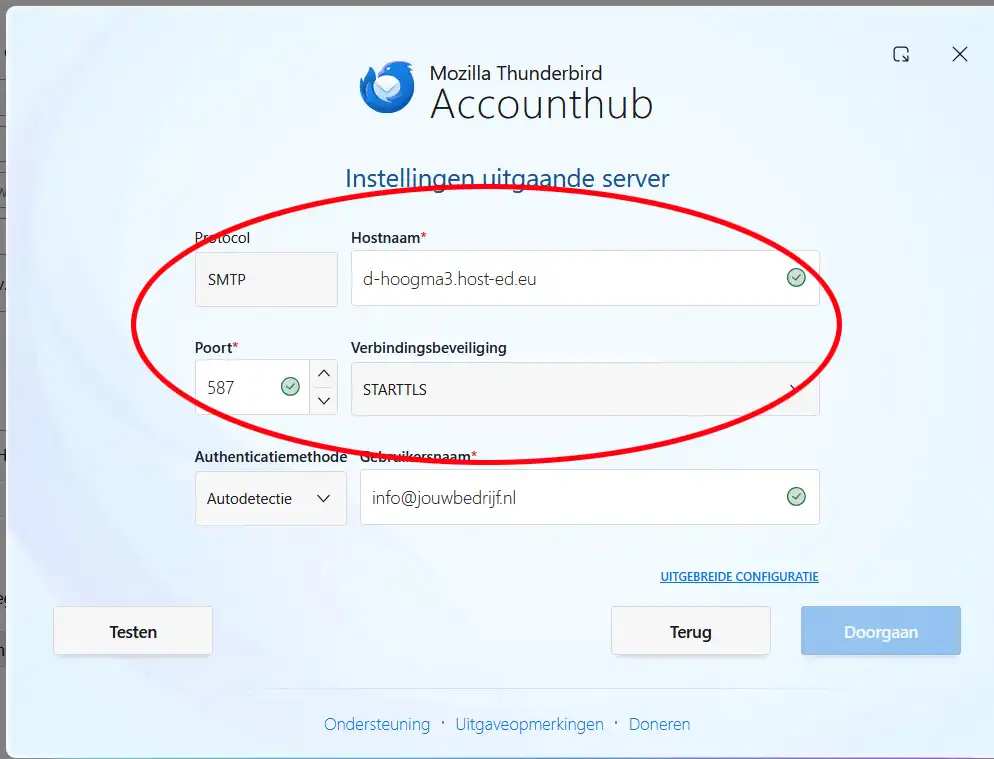
- Now go to the Outgoing server settings, enter the hostname d-hoogma3.host-ed.eu, and select port 587 with connection security STARTTLS.
- Click `Continue`.
Important: clean up your mailbox regularly
To prevent your mailbox from overflowing on the server (since everything is synchronized 1-to-1), it is advisable to maintain your mailbox and clean it up regularly. For example, you can choose to save all emails locally and delete them from the server every six months or once a year, depending on how much business email you receive. This keeps your mailbox organized and avoids warnings about a full mailbox.
Alternative: webmail
In addition to using an email client, you can always access your email via www.hwmail.nl. Log in with your email address and password. This is useful if you want to quickly check your mail or do not want to set up an email client.
Need help?
If you run into problems or have questions about this change, please contact us. We are happy to assist you.
Would you like to read more blog posts? Go to the page Blog.